← Back to portfolio

AI tool · Internal product · CoR & EESC

cScribe: from recording to text in a few clicks

UX, UI, logo & front end
Users
CoR & EESC officials
Outputs
Word, TXT, subtitles
Languages
7 + multilingual floor
Release
0.1-alpha · Jan 2026

Outcome

One simple, secure place for staff to turn meeting audio and video into text they can edit, share or subtitle

Officials at both Committees record plenaries, meetings, interviews and events. Writing up those recordings by hand takes hours. cScribe lets staff upload a recording, choose the language, and download the transcript as a Word file, plain text or subtitles.

The speech recognition runs in a Python service on the WIPO transcription engine, inside the Committees’ secure IT environment. I designed the interface and the logo, and built the front end on top of that service.

Tools: Figma, the CoR & EESC design system, HTML, CSS and JavaScript, connected to the Python web service.

Recordings pile up because writing them up takes hours

The AI team had a working transcription engine but no tool that staff could use on their own. The job was to wrap the engine in an interface that any official can use the first time, without training, and that keeps recordings safe.

What the tool must do

  • Start fast: one clear button to upload a recording.
  • Be clear about files: show the allowed formats before the upload, not after an error.
  • Show progress: long recordings take time, so the status must stay visible.
  • Give the right format: Word to edit, TXT to reuse, SRT for video subtitles.
  • Protect data: files stay in the Committees’ IT environment and expire after 7 days.

Proto-persona · from the use cases

Policy or meeting officer

Job to be done
“Turn this two-hour meeting into a draft I can edit for the minutes.”
Pain points
Writing up by hand takes a full day. Speakers switch language. Not sure which tools are allowed for internal recordings.

Proto-persona · from the use cases

Communication officer

Job to be done
“Add subtitles to this event video before we publish it.”
Pain points
Subtitles take long to time by hand. Needs a file that works in video editing software.

Four use cases, one short flow

Every use case follows the same five steps. Only the language and the download format change.

Main use cases.
Use caseWhoInputOutput
Draft minutes from a meetingMeeting secretary, policy officerMeeting audio in one languageWord file to edit (DOCX, verbatim)
Write up a plenary or debatePolicy officer, members’ supportFloor audio where speakers switch languageWord or TXT, with “Multilingual (Floor)”
Subtitle an event videoCommunication officerVideo file (MP4, MOV)SRT subtitle file
Reuse a quote or interviewPress, web and social media teamsInterview recordingPlain text (TXT) to copy and search
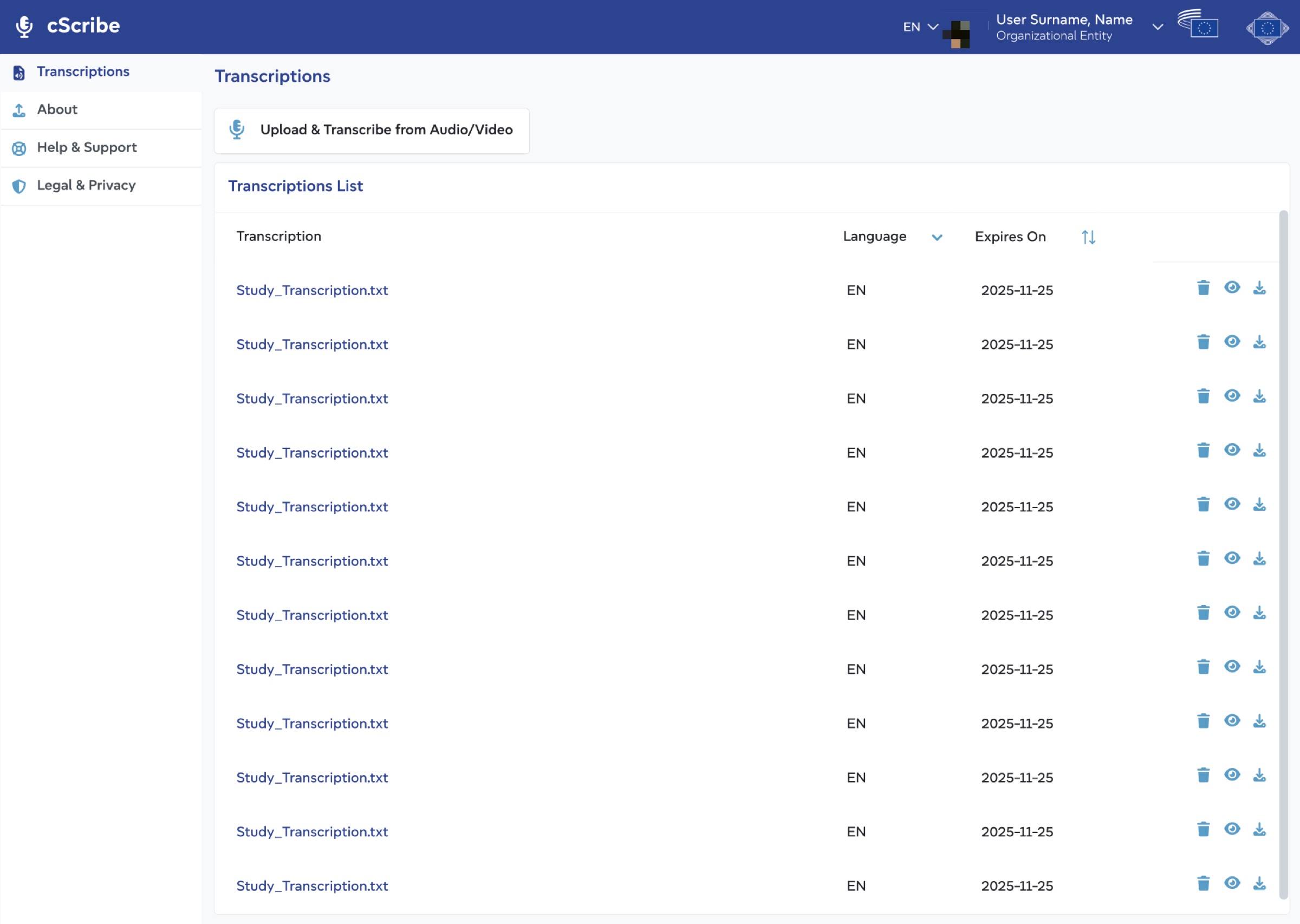
  1. 1Open the listSigned in with the staff account. All past transcriptions, with language and expiry date.
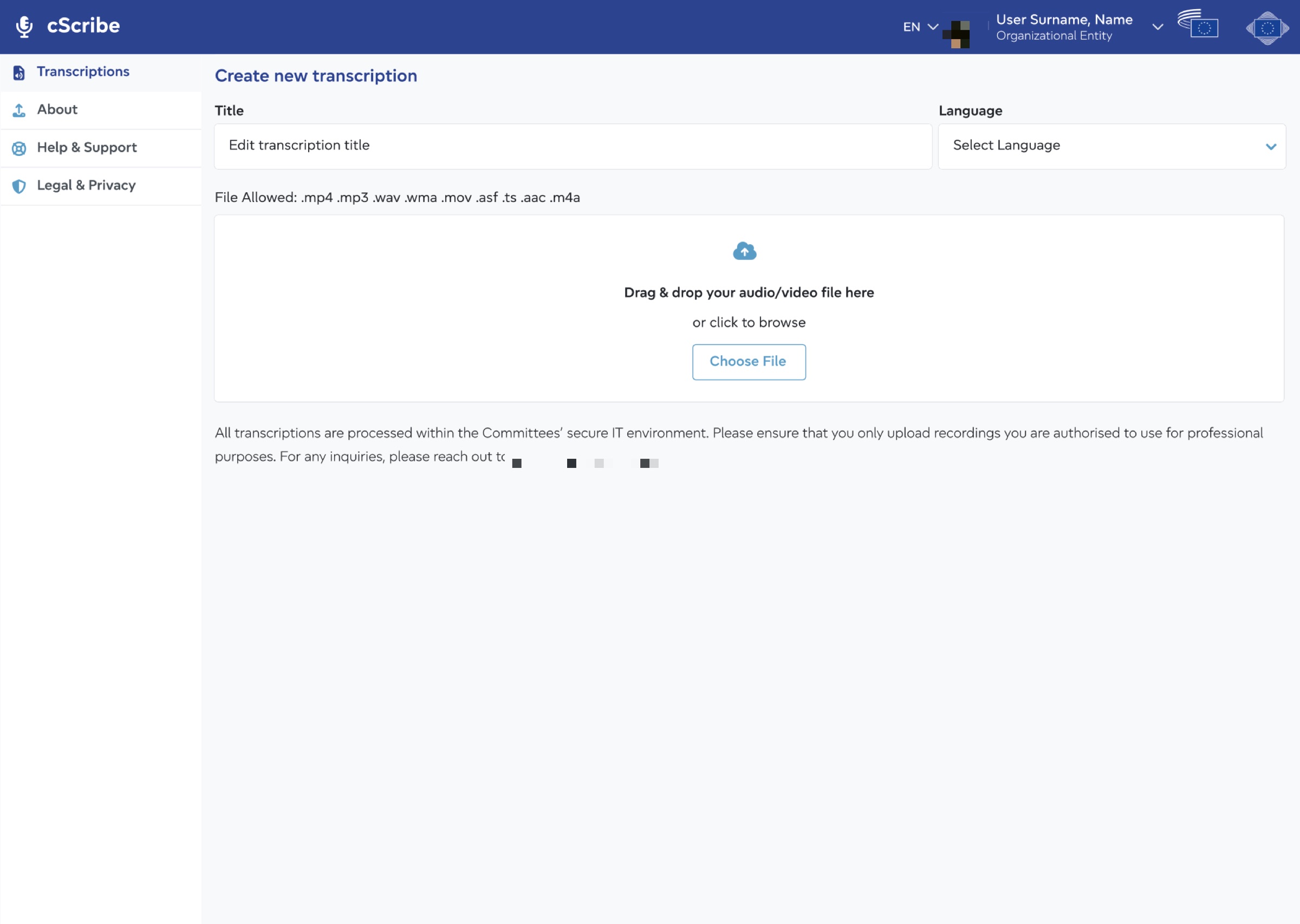
  2. 2Start an upload“Upload & Transcribe from Audio/Video”.
  3. 3Add title and languageBoth fields show a check mark when they are valid.
  4. 4Add the fileDrag and drop, or choose a file. Allowed formats are listed above the drop zone.
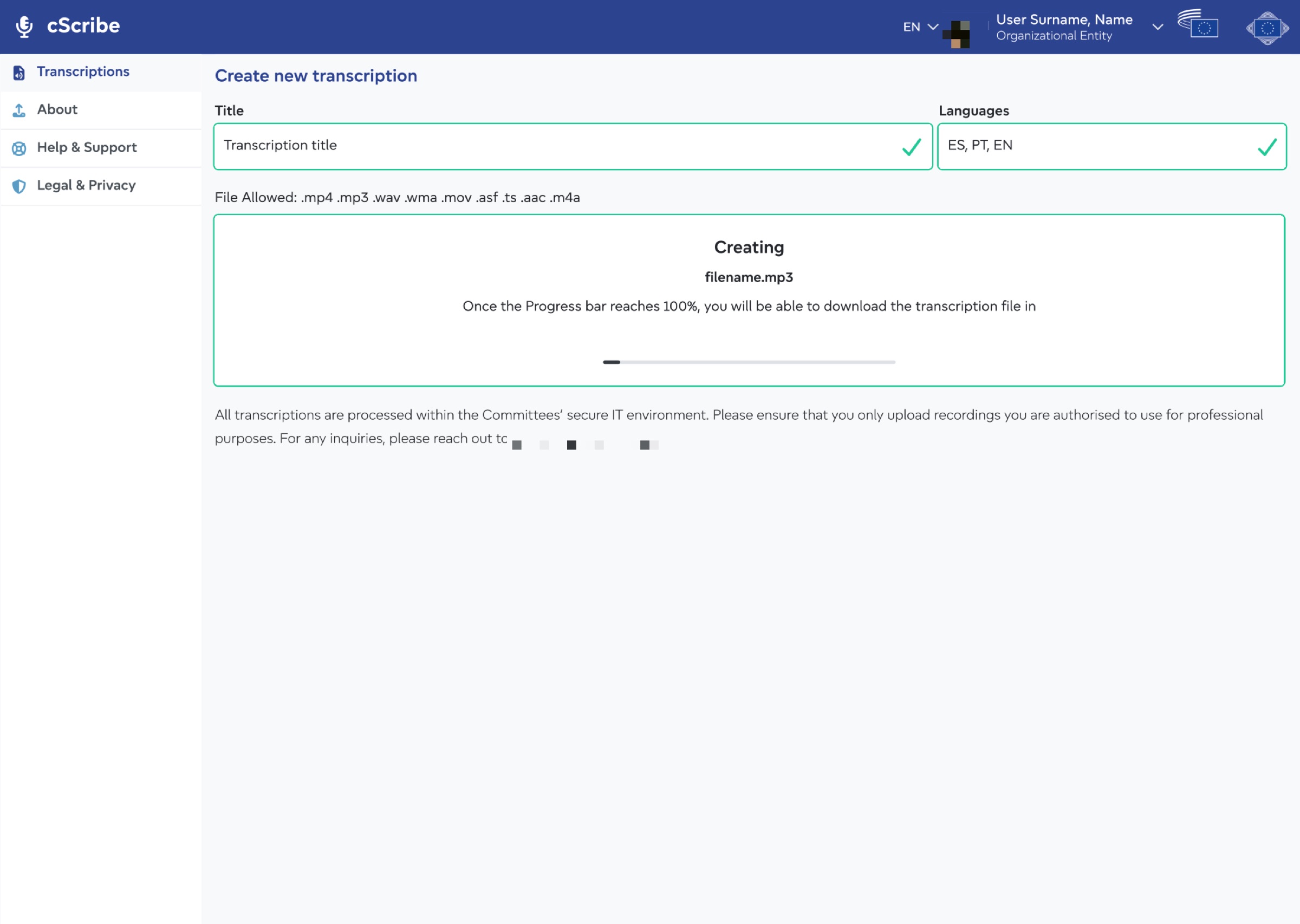
  5. 5Wait with clear statusA progress bar shows how far the transcription is.
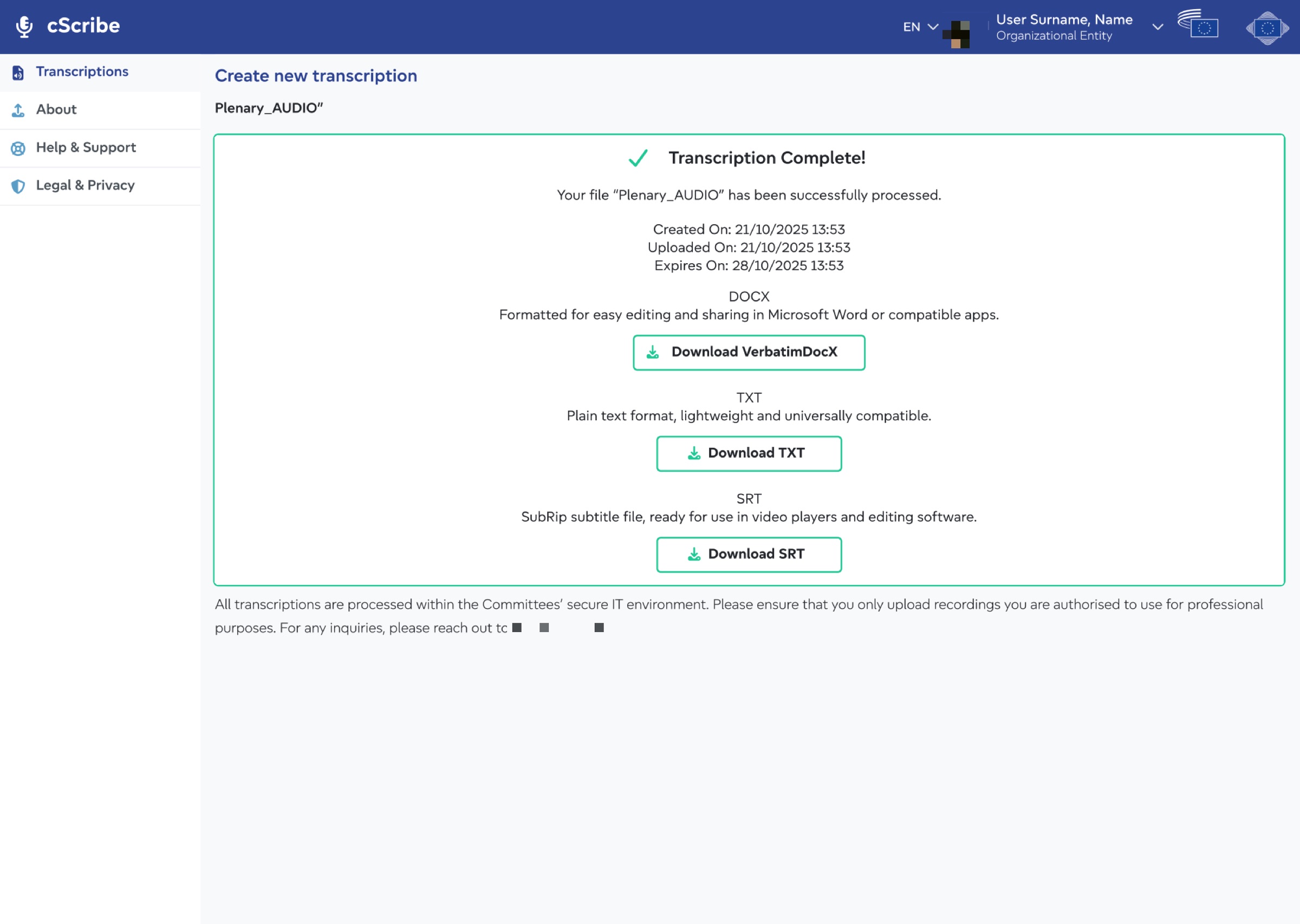
  6. 6DownloadWord, TXT or SRT. The dates show when the file expires.

Other paths

  • Come back later: the transcript waits in the list. View, download or delete it there.
  • Find a file: filter the list by language and sort it by expiry date.
  • Learn about the tool: About shows the supported languages, version and release date.
  • Get help: Help & Support and Legal & Privacy are always in the side menu.

Error paths to cover

  • Wrong file type: the drop zone says which formats work.
  • Missing title or language: mark the field and keep the upload waiting.
  • Upload or processing fails: a plain message and a way to try again, keeping the file name.
  • File expired: the list shows the expiry date so nobody is surprised.

Is it easy to use, and accessible to everyone?

I reviewed the screens against the 10 usability rules of Nielsen Norman Group and the WCAG 2.2 AA accessibility standard. Each row shows how the design answers each rule, and what still needs checking with users.

Usability review of the cScribe flow.
Usability ruleHow the design answers itTo check in testing
Visibility of system statusA progress bar while the file is processed. Created, uploaded and expiry dates on the result.Do people trust the progress bar on long recordings?
Match with the real worldFormats are named by what people do with them: edit in Word, plain text, subtitles for video.Do people pick the right format the first time?
User control and freedomView, download and delete from the list. Downloads stay available until the expiry date.Is deleting safe enough, or does it need a confirmation?
Error preventionAllowed formats are shown before the upload. Fields confirm with a check mark.Do people notice the format list before they drop a file?
Consistency and standardsThe header, colours and logos come from the CoR & EESC design system, like the other internal apps.Does the side menu feel familiar to staff?
Help and trustA short notice under each form says where files are processed and that only authorised recordings may be uploaded.Do people read the notice, and is it clear enough?
AccessibilityText labels on every icon action, visible focus, keyboard drag-and-drop alternative (“Choose File”), status not by colour alone.Keyboard only, screen reader announcements of progress and completion.

Test plan for the alpha

Status: plan. Moderated sessions with officials from both Committees, one task per use case. Results will replace this plan after the round.

Tasks and success criteria.
TaskWhat we watchSuccess means
“Transcribe this meeting recording in French.”Finding the upload button, filling title and language, adding the file.Done without help and without a wrong file type.
“You need subtitles for this video.”Which download people choose.They choose SRT and can say why.
“Find yesterday’s transcript and download it again.”Using the list, the language filter and the expiry sort.Found in under a minute.
“When will this file be deleted?”Reading the expiry date.They give the right date.

Accessibility tests

  • The whole flow by keyboard only, including choosing a file.
  • Screen reader announces progress and “Transcription complete”.
  • Contrast of every text and icon on the light background.
  • The 800 × 600 virtual-machine screen at 200% zoom.

After the round

Rate each problem by how often it happens and how serious it is, fix the top issues, and test again. I don’t show results that I haven’t measured.

Four screens, one complete journey

Designed for the three screens staff use: 1440 × 1024 desktops, 1920 × 1080 office PCs and 800 × 600 virtual machines. Names and contact details are hidden in the images.

Transcriptions list with an upload button and a table of files with language, expiry date and view, download and delete actions
1 · TranscriptionsEvery file with its language and expiry date. Filter by language, sort by expiry.
Create new transcription form with title, language and a drag-and-drop zone listing allowed file formats
2 · CreateTitle, language and a drop zone. Allowed formats come first.
Transcription in progress with checked title and languages fields and a progress bar
3 · ProcessingCheck marks confirm the fields. A progress bar shows the status.
Transcription complete screen with dates and download buttons for Word, TXT and SRT
4 · CompleteDates, then three downloads, each with one line on when to use it.

Logo

cScribe logo: a microphone shaped like the letter C, with AI sparkles cScribe app icon in 3D, same microphone and sparkles

A microphone whose body forms a “c” for cScribe, with three sparkles for AI. The flat version sits in the app header; the 3D version is the app icon. The gradient moves from magenta to light blue, so it stands out next to the institutional blue without competing with the Committee logos.

Built on the CoR & EESC design system

Same blue header (#2C4390) with both Committee logos on the right, the same side menu, form fields and buttons as the other internal apps. Success uses green with an icon and a text label, never colour alone.

App headerSide menuText fieldLanguage selectDrop zoneProgress barSuccess panelDownload buttonData tableIcon actions

See the CoR & EESC design system

What the interface does, and what the Python service does.
StepFront end (my work)Python service
UploadChecks title, language and file type before sending. Drag and drop with a keyboard alternative.Receives the file and starts a job.
ProcessingShows the file name and a progress bar, and keeps the page calm while it waits.Runs speech recognition on the WIPO engine.
ResultShows dates and the three download buttons with plain explanations.Creates the DOCX, TXT and SRT files.
ListTable with language filter, expiry sort and view, download and delete actions.Stores files and deletes them after 7 days.

What I delivered, and what comes next

Delivered

  • The cScribe logo and app icon.
  • The complete flow: list, create, processing, complete, About, Help & Support, Legal & Privacy.
  • Layouts for 1440 × 1024, 1920 × 1080 and 800 × 600 screens.
  • The front end, connected to the Python transcription service, released as 0.1-alpha on 23 January 2026.

Next steps

  • Run the test round with officials from both Committees.
  • Add a confirmation before deleting a transcript.
  • Show an estimated time for long recordings.
  • Add more of the 24 EU languages as the engine supports them.